Index
Introduction
The Metal Touch Sensor is a capacitive touch module that detects when a finger touches its metal sensing pad. It provides a digital output signal that changes state when touch is detected. The ESP32 can read this signal and perform actions based on the touch event. Touch sensors are commonly used in touch switches, automation systems, interactive projects, and human-machine interfaces. In this tutorial, we’ll interface a Metal Touch Sensor with the ESP32 and monitor touch detection through the Serial Monitor.
Required Components
- ESP32 Board
- Metal Touch Sensor Module
- Jumper Wires
- Breadboard
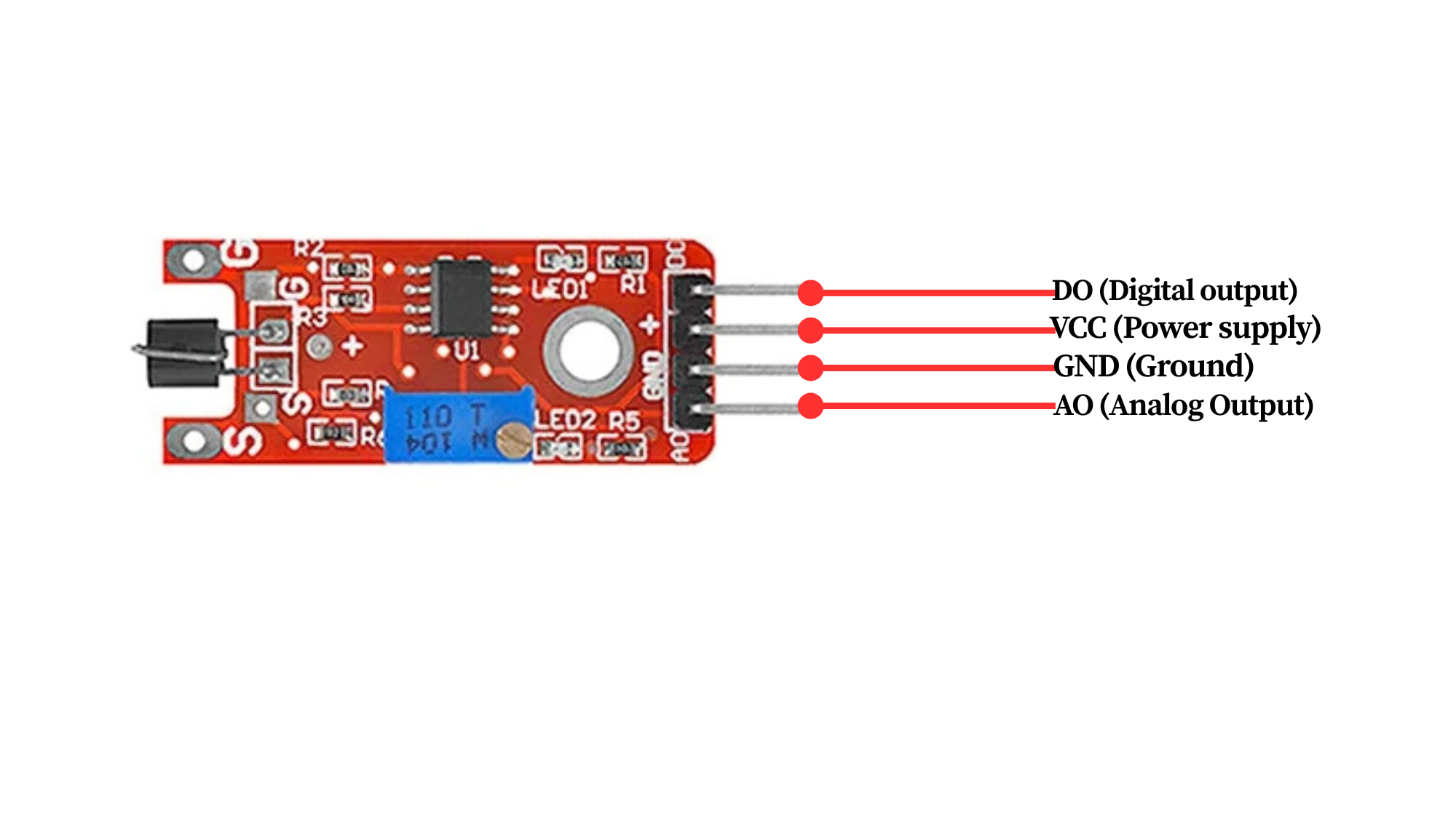
Pinout
Circuit Diagram / Wiring
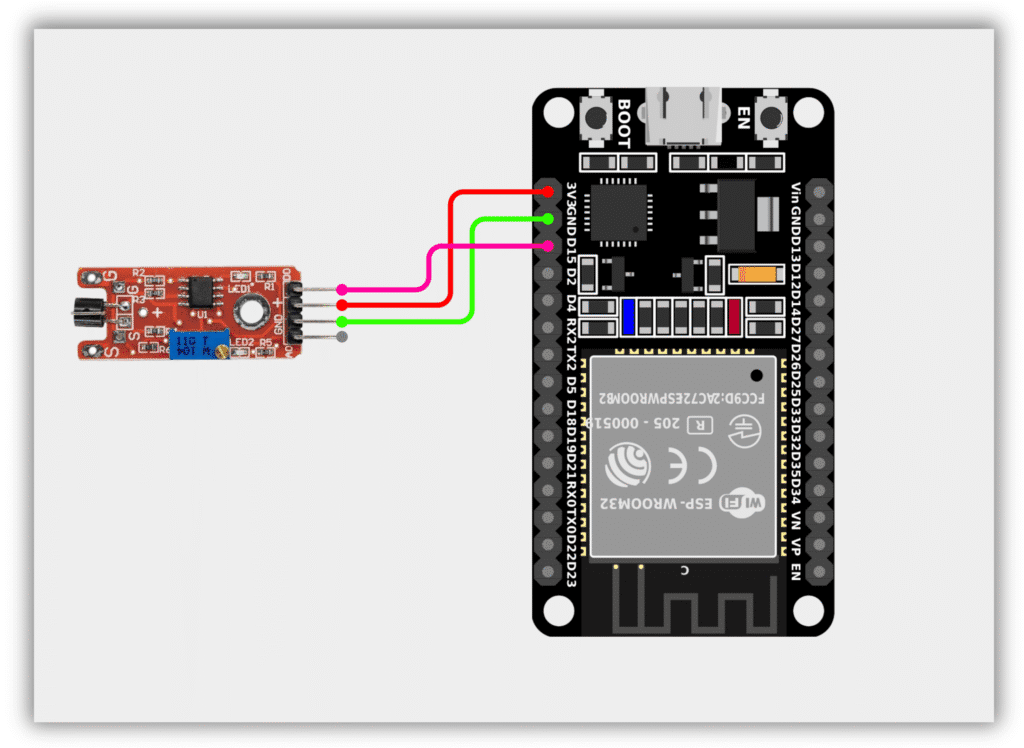
- Metal Touch Sensor VCC → 3.3V (ESP32)
- Metal Touch Sensor GND → GND (ESP32)
- Metal Touch Sensor OUT → GPIO 15 (ESP32)
Code / Programming
/*
  Filename: ol_metal_touch_sensor.ino
  Description: Reads Metal Touch Sensor status and prints result via Serial Monitor
  Author: www.oceanlabz.in
  Modification: 1/4/2025
*/

#define TOUCH_SENSOR_PIN 15

void setup() {
  Serial.begin(115200);
  pinMode(TOUCH_SENSOR_PIN, INPUT);
}

void loop() {
  int touchState = digitalRead(TOUCH_SENSOR_PIN);

  if (touchState == HIGH) {
    Serial.println("Touch Detected");
  } else {
    Serial.println("No Touch");
  }

  delay(500);
}
Explanation
- The TOUCH_SENSOR_PIN reads the digital output from the Metal Touch Sensor.
- When a finger touches the metal sensing pad, the sensor detects a change in capacitance and changes its output state.
- The ESP32 continuously monitors the sensor output and determines whether a touch event has occurred.
- The touch status is displayed on the Serial Monitor.
Troubleshooting
- Ensure that the sensor is powered correctly (VCC to 3.3V and GND to GND) and that the output pin is connected to GPIO 15.
- If touch is not detected, check the wiring connections and ensure you are touching the sensor’s metal pad directly.
- If the sensor triggers randomly, keep it away from sources of electrical noise and ensure a stable power supply.
- If no messages appear in the Serial Monitor, verify that the correct COM port and ESP32 board are selected in the Arduino IDE.